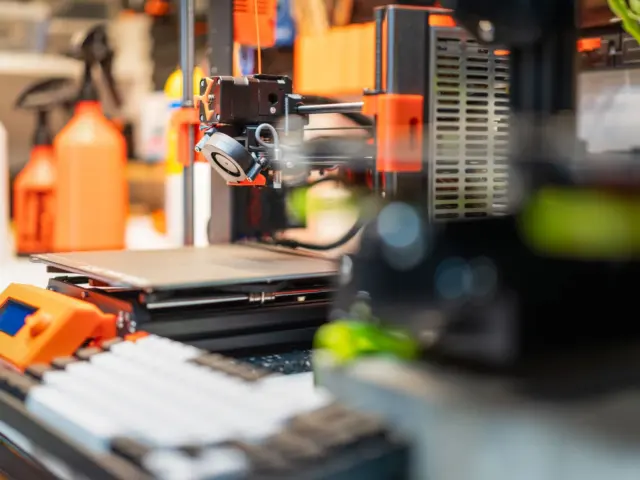
OctoPrint is free, open-source software that lets you control and monitor a 3D printer from any web browser. The stable release listed on its download page is OctoPrint 1.11.8, usually run on a Raspberry Pi.
It sits alongside other tools covered in the 3d printing hub, and it suits anyone who wants to stop walking to the printer to start a job.
What OctoPrint does
OctoPrint was created and is maintained by Gina Häußge, who states on the project site that she works on it full time and depends on supporter funding. The project page describes it as full remote control and monitoring of a printer from within a browser, and that description fits how most owners use it: upload a G-code file, press print, and watch progress from a phone or laptop on the same network. A typical session starts by slicing a model on a desktop, sending the file over the local network instead of copying it to a card, and then leaving the browser tab open on a second screen while the first layers go down.
The software runs as a small web server attached to the printer by USB. Because the server holds the G-code file itself, the printer no longer depends on a laptop staying awake or an SD card being carried across the room. A temperature graph, a terminal for sending raw commands, and a file manager are all part of the standard interface.
The licence matters for an editorial site that avoids commercial tie-ins: the project site says OctoPrint is released under the Affero General Public License (AGPL). Anyone can read, modify and self-host the code, and there is no subscription. The site does ask for donations and sells merchandise, and this article has no financial relationship with either.
Hardware and installation
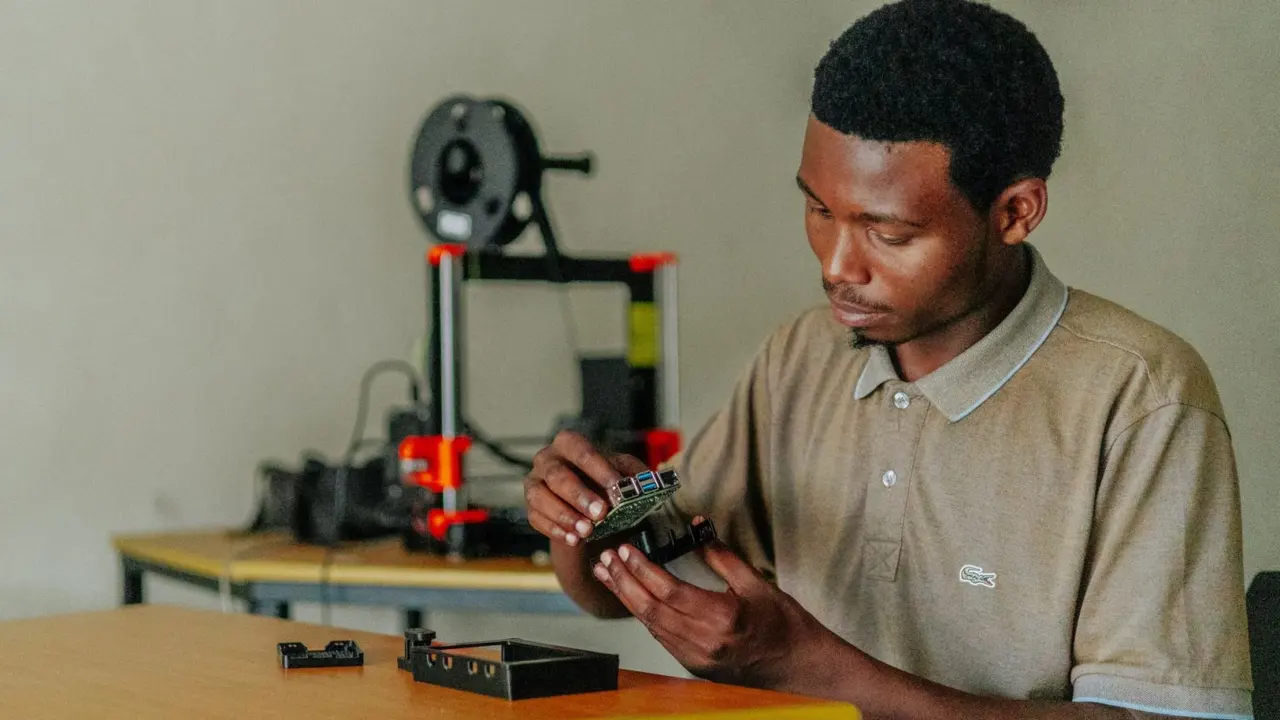
The download page lists OctoPi 1.1.0 bundled with OctoPrint 1.11.8 as the stable image, and says a Raspberry Pi 3B, 3B+, 4B or Zero 2 is strongly recommended. That list is the practical shopping guide: a single-board computer, a power supply, a microSD card and a USB cable to the printer’s controller board.
The older Raspberry Pi Zero and Zero W are singled out as a poor fit. The page explains that severe performance issues were observed, caused by the WiFi interface when bandwidth is used, for example while the webcam is streaming, and that this can hurt print quality. The Zero 2 is the exception the project does recommend.
Setup follows a short routine through the Raspberry Pi Imager. In the imager, the OctoPi image is found under “Other Specific Purpose OS”, then “3D printing”, then “OctoPi”, and the stable version is the one to choose. The imager’s advanced options let you preset the WiFi network and a user name before the card is written, which saves attaching a monitor.
OctoPi is not the only route. The same page lists Octo4a for Android, a Docker install, a Windows installer and a manual install in a Python virtual environment, started with the command octoprint serve. These suit people who already run a home server, but the Raspberry Pi image remains the path the documentation describes in most detail.
- OctoPrint was created and is maintained by Gina Häußge: Gina Häußge
- OctoPrint is released under the AGPL: Affero General Public License (AGPL)
- Webcam feed access: embedded webcam feed
- Plugin system: community plugins
- Stable OctoPi and OctoPrint versions listed: OctoPi 1.1.0 & OctoPrint 1.11.8
Plugins and webcam monitoring
The project site says its plugin system allows extending functionality with plugins from the community, and the developer documentation has a full section on writing them. That system is what turns a basic print controller into something personal: first-layer inspection, filament tracking, print-failure detection, and theme changes are all plugin territory rather than core features.
Installation of a plugin happens from inside the web interface through the built-in plugin manager, so no command line is needed. A sensible habit is to add one plugin at a time. The download page warns of print artifacts and long loading times on weaker hardware, especially when adding a webcam or third-party plugins, so a slow interface after an install points to the cause quickly.
The webcam is the feature most people notice first. The project site promises access to the embedded webcam feed so you can watch remotely how the printer is creating your newest object. OctoPi ships with a streaming component for live video, and time-lapse recording is a natural companion for long prints.
Safety and remote access
A web-controlled heater is a fire risk if left unwatched, and the sensible rule for any print host is to avoid relying on software alone. A printer left running overnight with only a browser tab for supervision is the scenario this guidance is meant to prevent, since a frozen Pi or a dropped WiFi link leaves nobody watching the hotend. Thermal runaway protection belongs in the printer firmware, and a smart plug or a physical cut-off adds a second layer. OctoPrint can watch temperatures, but it cannot replace a firmware safeguard if the Pi itself crashes.
Exposure to the internet is a separate decision. The project maintains a security policy page linked from its site, and the usual advice is to keep the instance on the home network and reach it from outside through a VPN rather than forwarding a port. An open OctoPrint login on the public internet gives a stranger control of a hot nozzle.
Treat the Pi like any other networked computer: change the default password during setup, create a named OctoPrint account with a strong passphrase, and avoid sharing the address with guests on the same WiFi. A printer that is controllable from a browser is only as private as the network it sits on, and a few minutes of account hygiene removes most of the realistic risk for a home workshop. Keep the system updated as well. The stable OctoPi image carries a specific OctoPrint version, and OctoPrint itself can update from the interface, so checking the release number against the download page once in a while is enough.
OctoPrint compared with Klipper
People often ask whether OctoPrint is still needed once a printer runs different firmware. The two do different jobs. OctoPrint is a host that sends G-code and presents a web interface, while klipper firmware changes how the printer’s motion is calculated, with a separate host doing the heavy work. Klipper users commonly pair it with a different web front end, though OctoPrint can still be used as the host on some setups.
For a stock Marlin printer, OctoPrint is the simpler upgrade: no firmware flashing, just a Pi and a cable. For a hobbyist building out a workshop, the same Pi can later join the wider list of home 3d printing projects, such as an enclosure with lighting and a camera.
Frequently asked questions
Is OctoPrint free?
Is OctoPrint free?
Yes. The project site says it is free and open source software released under the Affero General Public License (AGPL), with donations optional.
Which Raspberry Pi should be used?
Which Raspberry Pi should be used?
The download page strongly recommends a Raspberry Pi 3B, 3B+, 4B or Zero 2, and says the Zero and Zero W are not officially supported because of WiFi performance problems.
How is OctoPi installed?
How is OctoPi installed?
Through the Raspberry Pi Imager: choose “Other Specific Purpose OS”, then “3D printing”, then “OctoPi”, and select the stable version, as the OctoPrint download page instructs.
Can OctoPrint be installed without a Raspberry Pi?
Can OctoPrint be installed without a Raspberry Pi?
Yes. The download page lists Octo4a for Android, Docker, a Windows installer, and a manual install into a Python virtual environment.